Connect directly to a Transaction Engine
Clients connect to NuoDB databases by requesting for connections to Transaction Engines (TEs) through Admin Processes (APs). This allows the APs to perform load-balancing and to direct client connections to specific TEs. Thus, the clients do not have to keep track of the available TE processes.
The NuoDB JDBC connection string is:
jdbc:com.nuodb://ap-host[:port][,ap-host[:port]].../database_name?connection-propertiesBy default, the direct connection property is set to false, indicating a connection via AP(s).
It is useful to connect directly to a specific TE, especially during development and testing, to examine local system tables such as LOCALATOMS or LOCALCONNECTIONS.
There are two methods to connect directly to a TE:
-
Connect Using
LBQuery -
Connect Using
direct
Connect Using LBQuery
In this method, connect to a specific TE using start ID and then specify the TE to service SQL clients using the LBQuery
To get the start ID of the TE to connect to, run nuocmd show domain.
For example:
$ nuocmd --api-server server-0:8888 show domainserver version: 6.0-1-fc6a857de9, server license: Enterprise
server time: 2023-11-18T23:18:04.218, client token: ...
Servers:
[nuoadmin-0] server-0/203.0.113.10:48005 [last_ack = 1.94] [member = ADDED] [raft_state = ACTIVE] (LEADER, Leader=nuoadmin-0, log=0/18/18) Connected *
Databases:
test [state = RUNNING]
[SM] server-0/203.0.113.10:48006 [start_id = 12] [server_id = nuoadmin-0] [pid = 397] [node_id = 1] [last_ack = 3.61] MONITORED:RUNNING
[TE] server-0/203.0.113.10:48007 [start_id = 14] [server_id = nuoadmin-0] [pid = 401] [node_id = 2] [last_ack = 1.68] MONITORED:RUNNINGUse the start ID of the TE to specify the TE that should service SQL clients using the LBQuery connection property.
A direct connection is made using the load-balancing capability of the APs.
For example, the syntax for setting up a direct JDBC connection using LBQuery is:
jdbc:com.nuodb://ap-host[:port][,ap-host[:port]].../database_name?LBQuery=random(start_id(14))Since there is only one possible match, either the random or round_robin selector is valid.
Connect Using direct
In this method, specify the host and port number of the TE in the URL and add the direct=true connection property.
The syntax for setting up a direct JDBC connection using direct is:
jdbc:com.nuodb://te-host[:te-port][,te-host[:te-port].../database_name?direct=trueTo get the host and port of the TE, run nuocmd show domain.
In the earlier example, the TE host is server-0 and TE port is 48007.
The connection URL to connect to the TE is:
jdbc:com.nuodb://server-0:48007/test?schema=test&direct=trueFor redundancy (in case a TE has stopped or is not responding), multiple TEs can be specified using a comma-separated list in the JDBC URL as follows:
jdbc:com.nuodb://<te-host1>:<te-port1>,<te-host2>:<te-port2>,.../database?direct=trueUniversal SQL clients, such as DBeaver, DBVisualizer, and SQuirreL support the connection URLs described in this section.
When To Use Direct Connections
If the client is on a different network to the NuoDB processes, the address of the TE returned by the AP may not be accessible to the client. Instead a direct connection to the TE must be used, bypassing the APs. For this to work the TEs must be accessible from the client in some way. There are several possible scenarios:
-
When running NuoDB in containers, the connection URL specifies
localhostand the local port your TE container is mapped to. -
If your TEs are only accessible via a load-balancer (typical in a Cloud and/or Kubernetes deployment), the host and port specified in the connection URL is for the load-balancer.
-
If you are using SSH tunnelling to connect across networks, the connection URL must specify
localhostand the tunnel port.
Running NuoDB in Containers
| The example in this section uses the Docker containerized environment. |
When running NuoDB on your local machine in containers, the IP addresses of the containers may be assigned from an internal network created by the container engine. Port mapping is required to access the APs and TEs (clients never connect to SMs).
In the following example, when setting up a TE in a container, the TE running on port 48006 in the container is mapped to port 58001 on your local machine.
Trying to connect to the TE via an AP will fail because the AP will return the internal IP address of the TE which the client application running outside the container, cannot access.
docker run -d --name test-te-1 \
   --hostname test-te-1 \
   --network nuodb-net \     (1)
   --publish 58001:48006 \   (2)
   nuodb/nuodb:latest nuodocker \
       --api-server nuoadmin1:8888 \    (3)
       start te --db-name testdb \
--server-id nuoadmin1| 1 | Connects the container to a custom Docker network. |
| 2 | Maps the container port 48006 to local port 58001. |
| 3 | Specifies the AP to register the TE. |
To connect to the TE, use any of the following options:
-
Build a container for your application and run the container on the same network (
nuodb-net). The application can connect via APs because it is on the same network segment. For application on Kubernetes, containerization is needed, making this the most practical option. -
Connect directly to a TE using its mapped port number.
To connect to a TE with the TE port mapped to local port, specify the local port. For example, if the TE port is
48006and the local port is58001connection string should be:jdbc:com.nuodb://localhost:58001/database?direct=trueIf using
nuosql:nuosql database@localhost:58001 --user <user> --password <pwd> --direct
Using a Load Balancer
If the client application is running inside the same Kubernetes cluster as NuoDB, direct access to the TE is not required. When running NuoDB in a Cloud, either on VMs or in Kubernetes, external clients (not running on the same network) cannot access NuoDB directly.
In such cases, setup a load-balancer with an external (public) IP address. The connection string should be:
jdbc:com.nuodb://<router-ip-address>:<router-port>/database?direct=trueTo the client, the router looks like the one and only TE, but behind the scenes the router forwards your requests to one of the TEs sitting behind it.
When installing a NuoDB database in Kubernetes using NuoDB Helm chart, set te.externalAccess.enabled=true and te.externalAccess.internalIP=false to define the necessary load-balancer.
Use kubectl get services to retrieve the router-port and and router IP address (it is typically the only service with a public IP address).
SSH Tunneling
The ssh command securely connects to a remote machine, create a tunnel to it, and execute commands on that remote machine.
The direct property enables a connection string to be set up using a tunnel you have created for a specific TE.
Using Direct localhost Tunnel
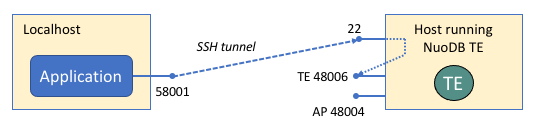
In this example, a direct tunnel is established between a local machine and a target Amazon EC2 NuoDB TE instance, going from port 58001 on localhost to an open port, 48006, of the EC2 host (203.0.113.251) as user ec2-user.
localhost here refers to the far end of the tunnel - all commands received at the EC2 host are forwarded to port 48006 on that same host (if you compare to the jump box example below, the EC2 host is both Host A and Host B).
|
ssh -N -L 58001:localhost:48006 ec2-user@203.0.113.251To connect: jdbc:com.nuodb://localhost:58001/database?direct=true
Using a Jump Server
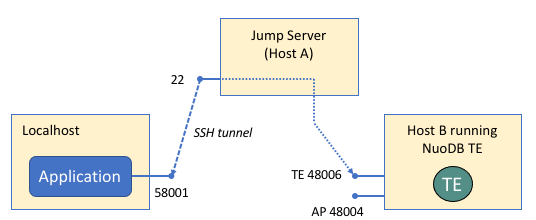
In this example,:
-
An Amazon EC2 instance (Host A on
ec2-203-0-113-82.compute-1.amazonaws.com) acts as the jump server, accessed via userec2-user. -
The jump server opens an SSH connection to a known host (Host B on
203.0.113.251), that has an open port on 48006 and creates a port on your localhost on port 58001.
# Format: ssh -N -L 58001:<Host B>:48006 ec2-user@<Host A>

ssh -N -L 58001:203.0.113.251:48006 ec2-user@ec2-203-0-113-82.compute-1.amazonaws.com
To connect: jdbc:com.nuodb://localhost:58001/database?direct=true